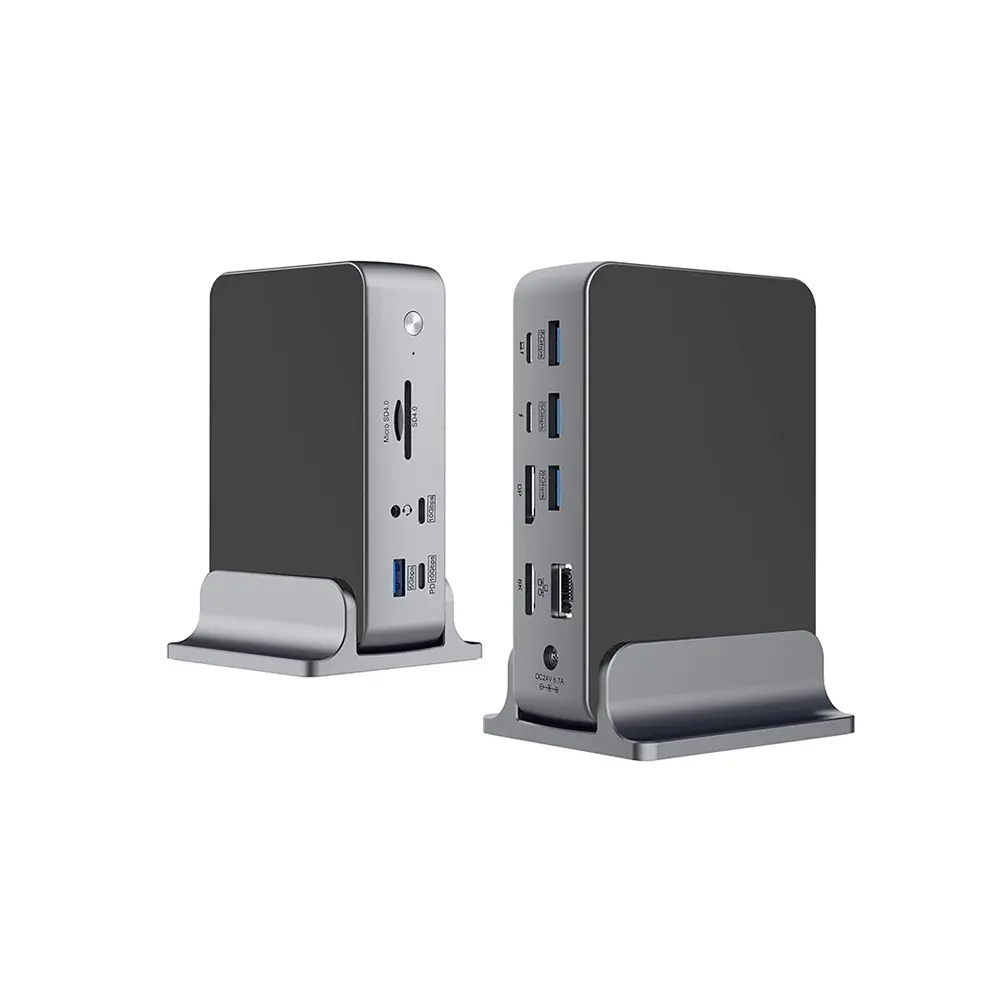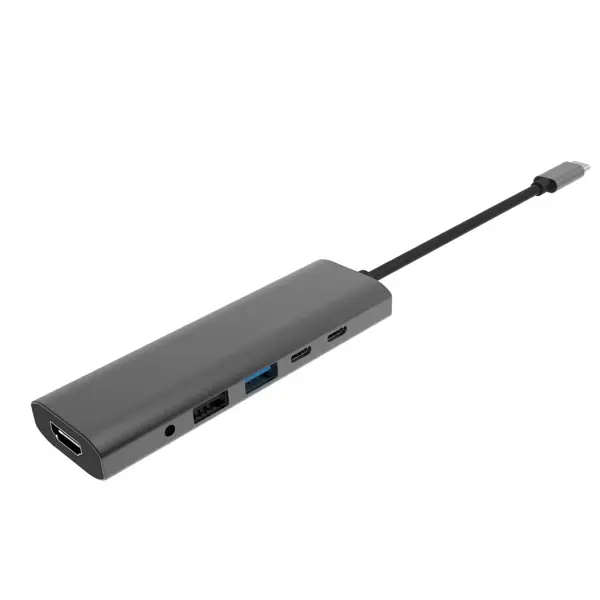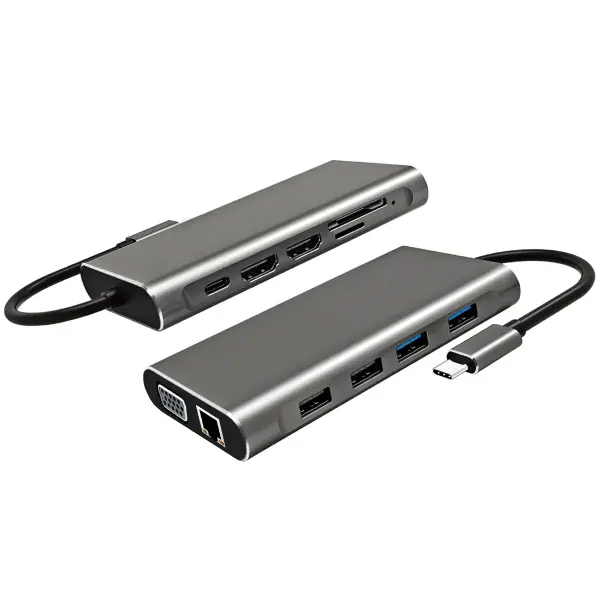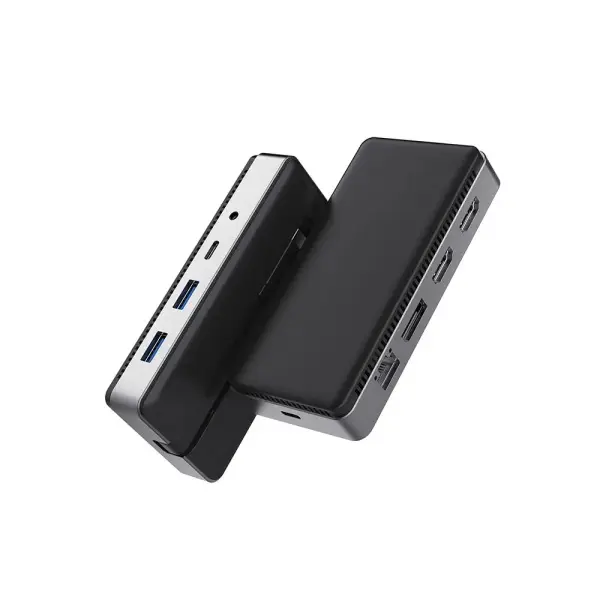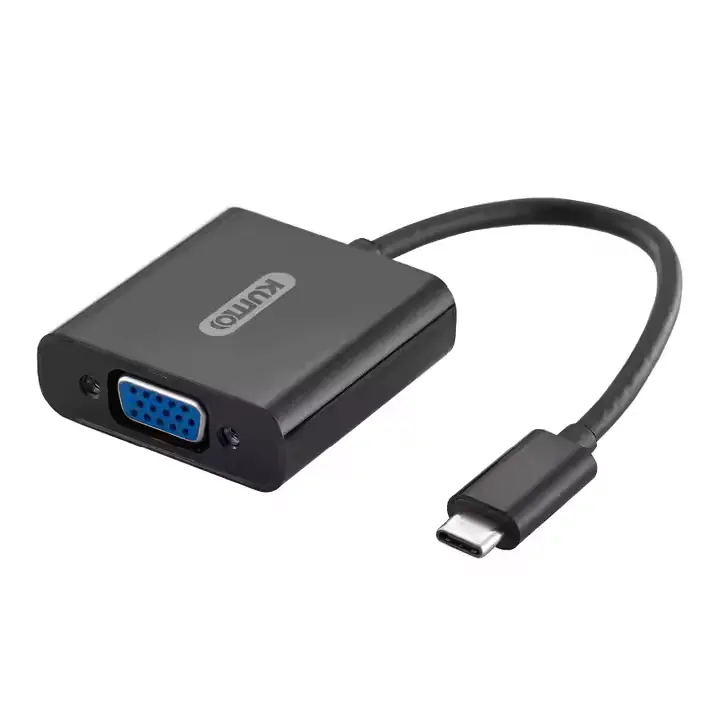
Choosing the right Usb C Multiport Hub is no longer a simple port-counting exercise. Global buyers now expect one compact device to connect laptops, monitors, storage drives, keyboards, and network equipment. IDC’s Worldwide Quarterly Personal Computing Device Tracker reported global PC shipments of approximately 262.7 million units in 2024. That installed hardware base continues to create demand for practical, cross-border connectivity accessories.
Real-world selection requires more than attractive packaging. The USB Implementers Forum (USB-IF) defines different USB Type-C capabilities, including data speeds, power delivery, and display support. A USB-C connector does not automatically guarantee USB4, Thunderbolt compatibility, or high-resolution video output. Check the exact specifications. Test them against your laptop model.
This guide examines the details that global buyers should verify before ordering. It covers port standards, Power Delivery ratings, HDMI performance, Ethernet speed, heat management, certification, warranty support, and regional plug requirements. Gartner and IDC market research also shows the continued movement toward mobile, hybrid, and compact computing, where fewer built-in ports increase dependence on hubs. Yet a higher price does not always mean better engineering. That assumption deserves reconsideration.
A reliable evaluation includes practical tests: copying a large video file, running a 4K monitor, charging under load, and checking connection stability after several hours. Small details matter. Cable length matters. Firmware support matters. No hub is perfect, but transparent specifications and documented testing reduce expensive surprises for distributors, retailers, and end users worldwide.
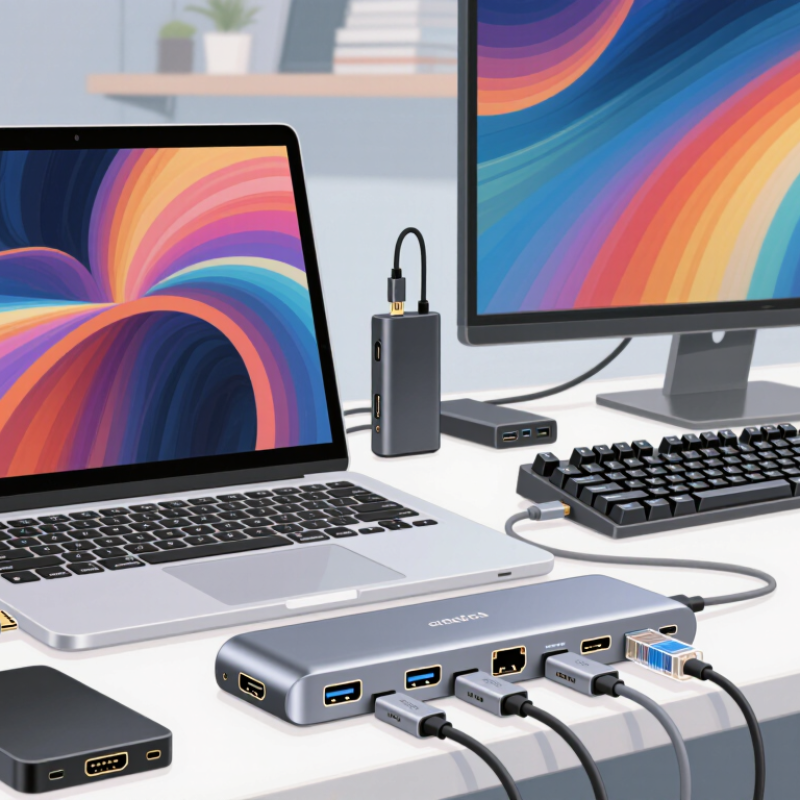
USB-C multiport hubs connect laptops, tablets, displays, storage devices, and network accessories through one compact port. Global demand is growing with device mobility. Grand View Research estimated the USB hub market at about USD 1.2 billion in 2023, with continued growth expected through 2030. That figure signals opportunity, but it does not guarantee a suitable purchase.
Global buyers should check the hub’s actual USB data rate, not only its port label. USB 3.2, USB4, and USB-C describe different capabilities. Ports share bandwidth. A hub may advertise fast transfer, yet slow down when storage and video operate together. Confirm display resolution, refresh rate, power delivery capacity, and operating-system support. For international orders, inspect the included power adapter, plug type, input voltage, regional certification, and packaging language. USB-IF technical specifications offer a reliable reference for connector and performance terminology.
Physical testing matters. Connect a monitor, external drive, wired network, and charger at the same time. Watch for heat, disconnects, unstable charging, and reduced transfer speed. Higher port counts are not always better. They can increase heat and reduce shared performance. I would also question impressive wattage claims without measured output. One weakness remains easy to overlook: compatibility can change after firmware or operating-system updates. A clear warranty, traceable test results, and responsive technical support make the purchase safer for distributors and end users. Test it yourself.
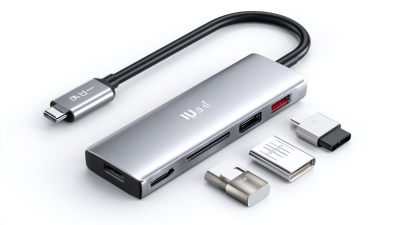
USB-C Multiport Hub Basics and Global Buyer Requirements
Choosing a USB-C multiport hub starts with the ports you genuinely use. A travel buyer may need USB-A for a mouse, USB-C for storage, an SD slot for camera files, and Ethernet for stable hotel internet. Check whether each port works simultaneously. Some compact hubs share internal bandwidth, so transferring files can slow down when a display is active. I once selected a hub with many sockets, but its layout crowded two ports beside a wide cable. That mistake was practical, not theoretical.
Data speed labels deserve careful reading. USB 3.2 may indicate different performance levels, depending on its generation and implementation. For large video files, confirm the stated gigabits per second and test sustained transfer performance. Display support also needs scrutiny. Verify HDMI or DisplayPort resolution, refresh rate, and operating-system compatibility. A hub may support 4K output but only at 30Hz, which feels noticeably less smooth for work. Multi-display support can also depend on the computer’s graphics architecture.
Tips: Choose a hub with a clearly labeled PD input and enough wattage for your laptop. Remember that the hub consumes some power before charging reaches the computer. Confirm the charger’s regional plug and electrical certification. Avoid assuming every USB-C port supports video or charging. Read the technical sheet twice. Small omissions matter. Keep return policies in mind, because real devices sometimes behave differently across laptops, monitors, and cables.
A USB-C hub should match the host device, not just its connector shape. USB-IF specifications define USB 2.0, USB 3.2, and USB4 performance levels. Therefore, one USB-C port may transfer data slowly while another supports high-speed displays. Check the computer’s manual for data speed, charging input, and DisplayPort Alt Mode.
I learned this the hard way. A hub can power a laptop yet fail to show a monitor. The cable may also limit performance. Short, certified cables usually reduce troubleshooting.
Operating systems can change the experience. Windows, macOS, ChromeOS, Linux, Android, and tablets may handle network adapters or dual displays differently. Verify driver requirements before purchase. Some systems support plug-and-play Ethernet, while others need permission settings.
Regional standards matter too. The European Commission’s common-charger policy estimates annual savings of €250 million and 11,000 tonnes less electronic waste. It also requires USB-C for many devices from December 2024, with laptops included from April 2026.
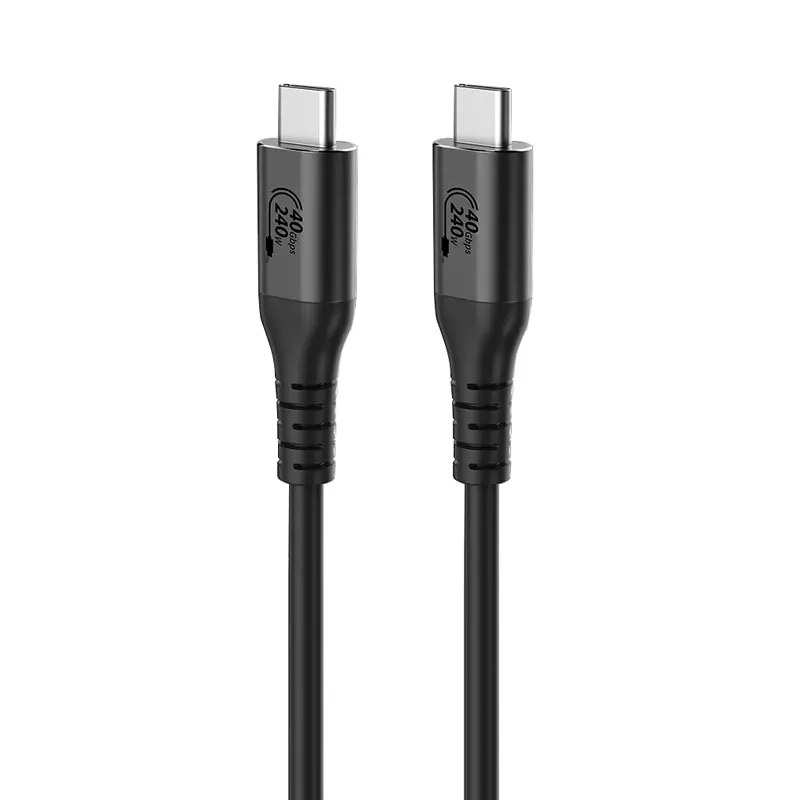
However, regional compliance does not guarantee hub compatibility. Check the plug type, voltage range, power-delivery profile, and local warranty support. USB Power Delivery 3.1 can reach 240 watts, but the host device decides its actual intake.
More power is not always better. A small mistake here can create heat, cost, and frustration. According to the USB-IF USB Type-C Specification, capability labels should be checked instead of assumed.
Choosing a USB-C multiport hub starts with safety, not port count. Look for USB-IF certification and testing against IEC 62368-1 principles. These checks address overheating, insulation, and abnormal power conditions. A metal shell can improve heat dissipation, but it is not automatically safer. Check connector strain relief, cable flexibility, and visible ventilation gaps.
The 2024 Global E-waste Monitor reported 62 million tonnes of electronic waste in 2022. Only 22.3% was formally collected and recycled. A durable hub supports longer use, yet durability claims need evidence. Prefer aluminum housing, reinforced ports, and documented temperature testing. Warranty length matters, but read its exclusions carefully. Some policies exclude damaged cables, power adapters, or overseas returns. Pricing should reflect chipset capability, not appearance. A cheaper hub may lack stable Ethernet, video certification, or surge protection. An expensive model can still disappoint.
Tips: Match the hub to your laptop’s power budget and display needs. Confirm the USB-C input supports data, charging, and video. Keep invoices and test every port during the return period. I have found that “8-in-1” labels can hide serious limitations. More ports are not always more useful. Compare sustained transfer speeds, not only advertised peak rates. The USB Implementers Forum documentation also warns that USB-C capabilities vary by product, so verify each specification before purchase.
How to Choose a USB C Multiport Hub for Global Buyers
Selecting the Best Hub for Travel, Work, and International Use
A good USB C multiport hub should match your daily equipment, not just your device count. Check whether its USB C port supports charging, data transfer, or video output. These functions are often different. For travel, I prefer a compact hub with HDMI, USB A, USB C power input, and a card reader. A short cable reduces tangles inside a crowded laptop bag.
Power delivery matters during international trips. Confirm the hub’s maximum input rating and your computer’s charging requirement. A hub may accept power but still charge slowly. You also need a separate plug adapter for each destination’s wall socket. The hub does not convert local voltage. Never assume every charger works everywhere.
For work, test the hub before leaving home. Connect your monitor, keyboard, storage drive, and network cable at the same time. Watch for heat, flickering screens, or dropped connections. I once selected a very slim model that overheated during a long presentation. That choice was not ideal. A slightly larger aluminum body may provide better cooling. Check operating-system compatibility, port spacing, and warranty support from a reliable seller. Keep important files backed up, because a travel accessory can fail without warning.
| Buyer Profile | Recommended Port Configuration | Display Output | Power Delivery | Data Transfer | Travel and Regional Requirements | Compatibility Checks | Recommended Hub Characteristics |
|---|---|---|---|---|---|---|---|
| International Business Traveler | 1 × USB-C data, 2 × USB-A, HDMI, USB-C power input, SD or microSD | HDMI up to 4K at 30 Hz is generally sufficient for presentations and office work | At least 60 W passthrough; the connected charger must provide enough power for the laptop | USB 3.x ports up to 5 Gb/s are suitable for documents, presentations, and external drives | Compact body, short detachable or integrated cable, low weight, and a rugged enclosure; the hub itself does not convert wall voltage | Confirm the laptop supports USB-C video output and USB Power Delivery; check the local plug standard for the separate charger | Best for portability Prioritize small size, essential ports, reliable HDMI, and broad operating-system support |
| Remote and Hybrid Worker | 1 × USB-C data, 2–3 × USB-A, HDMI or DisplayPort, Ethernet, audio, USB-C power input | 4K at 30 Hz is adequate for general productivity; 4K at 60 Hz is preferable for smoother desktop use | At least 65 W passthrough; higher-capacity laptop users should allow for power lost inside the hub | At least one 5 Gb/s USB port; use a faster interface when regularly moving large files | Gigabit Ethernet is useful where wireless networks are unreliable; include a separate charger if the hub does not contain one | Verify Ethernet driver support, display-alt-mode support, and whether the operating system permits external display use through the hub | Best for everyday work Balance display quality, wired networking, charging, and accessible front-facing ports |
| Photographer or Content Creator | SD card slot, microSD card slot, 2 × USB-A or USB-C data ports, HDMI or DisplayPort, USB-C power input | 4K at 60 Hz is preferable when reviewing footage or editing on a larger monitor | At least 90 W passthrough for high-performance laptops, subject to the laptop and charger limits | USB 3.x at 5 Gb/s or faster; card-reader performance depends on the card, reader, file system, and host connection | Use a sturdy enclosure and strain relief; avoid blocking adjacent laptop ports when inserting memory cards or cables | Check the maximum supported card capacity and file systems; confirm simultaneous card and USB operation if required | Best for media workflows Prioritize card-reader stability, sustained transfer performance, thermal control, and fast display output |
| Frequent Presenter | HDMI, USB-C power input, 1–2 × USB-A, USB-C data, optional Ethernet | 1080p at 60 Hz works with most conference-room displays; 4K support adds flexibility for newer venues | 60 W passthrough is normally adequate for lightweight laptops during presentations | USB 2.0 can handle simple peripherals, but USB 3.x is preferable for faster file access | Choose a compact hub with an HDMI port that is easy to identify; carry the correct HDMI cable and regional charger plug | Check HDMI compatibility, HDCP requirements for protected content, and the laptop's external-display limitations | Best for meetings Favor dependable video output, quick setup, clear labeling, and minimal cable clutter |
| Office Desk User | Ethernet, HDMI or DisplayPort, 3–4 × USB-A, USB-C data, USB-C power input, audio | 4K at 60 Hz is suitable for a modern single-monitor workstation; multi-display support requires careful specification checking | 65–100 W passthrough depending on the laptop's charging requirement | 5 Gb/s or faster for external storage and frequent backups | A larger aluminum enclosure and a longer cable can improve desk placement, although they reduce portability | Confirm the number of supported displays, operating-system requirements, and whether extra software is needed for additional monitors | Best for desk connectivity Prioritize port count, thermal performance, stable Ethernet, and cable reach over minimum size |
| Tablet and Smartphone User | USB-C power input, HDMI, 1 × USB-A, USB-C data, optional card reader | 1080p at 60 Hz is typically sufficient for portable entertainment and presentations | 30–60 W passthrough, depending on the mobile device's charging capability | USB 2.0 may be sufficient for keyboards and mice; USB 3.x is better for storage and media files | Choose a lightweight hub with a short cable and low power consumption; confirm that the device supports host mode | Check USB-C host support, video output capability, charging behavior, and the need for an on-screen permission prompt | Best for mobile setups Keep the port selection simple and verify compatibility before relying on it while traveling |
| Ethernet-Dependent Traveler | Gigabit Ethernet, USB-C power input, HDMI, 1–2 × USB ports | 1080p at 60 Hz is normally enough for hotel televisions and office monitors | 60 W passthrough provides a practical balance between charging and portability | USB 3.x is preferred when transferring files while using wired networking | Gigabit Ethernet is backward-compatible with many slower network environments; bring the required network cable and verify local network policies | Confirm operating-system support for Ethernet and whether the network requires browser authentication, static settings, or device registration | Best for wired access Prioritize stable network performance, compact dimensions, and clear link/activity indicators |
| High-Performance Laptop User | DisplayPort or HDMI, 2–3 × USB 3.x, Ethernet, USB-C power input, optional card reader | 4K at 60 Hz is recommended; higher resolutions or refresh rates depend on the hub chipset and host device | 100 W passthrough may be useful, but the actual laptop charging rate can be lower because the hub consumes some power | 5 Gb/s or faster; avoid assuming that every USB-C port supports the same data rate or display function | Allow for added heat and power draw; a metal housing may help heat dissipation but can become warm during heavy use | Check the laptop's USB-C capabilities, charger wattage, display bandwidth, and any manufacturer-specific charging limits | Best for demanding systems Prioritize bandwidth, power headroom, thermal design, and documented display specifications |