Inquiry
Form loading...

How to Choose a Type C Docking Station for Laptop in 2026?

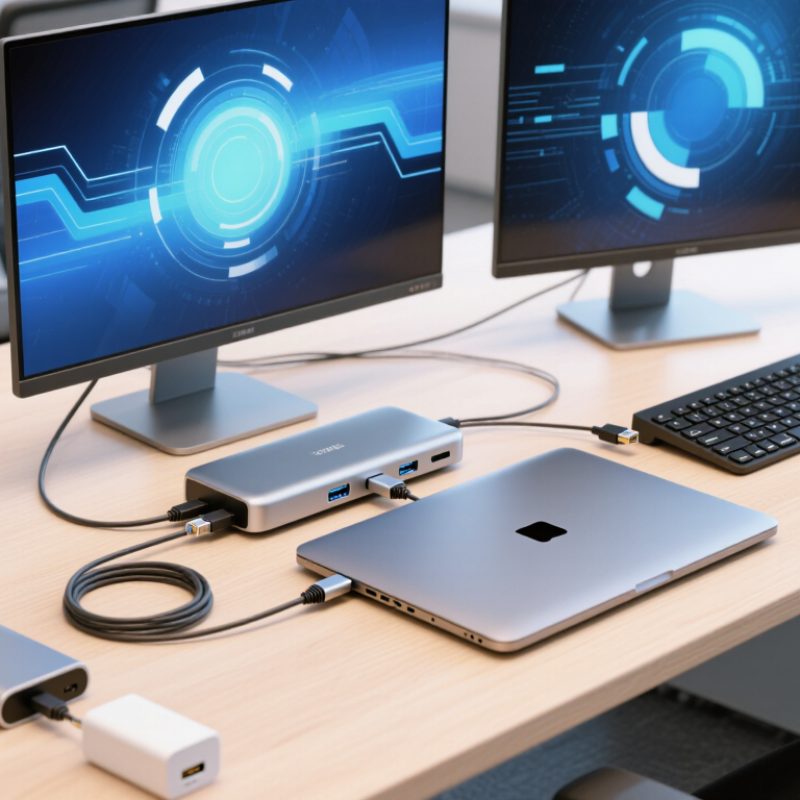
Choosing the right Type C Docking Station For Laptop in 2026 requires more than counting ports. A modern dock can connect displays, storage, keyboards, wired networks, and charging through one compact cable. However, compatibility often depends on the laptop’s USB-C features, operating system, monitor resolution, and power requirements. A port may support charging but not video output. Small details matter.

This guide explains how to evaluate docking stations through practical testing and reliable technical criteria. We will examine USB-C and Thunderbolt compatibility, Power Delivery limits, display standards, data transfer speeds, Ethernet performance, and port placement. A useful dock should handle daily work without overheating, disconnecting, or wasting desk space. It should also receive firmware updates and provide clear warranty support from a reputable manufacturer.

Real-world experience reveals problems that product pages may hide. Some docks perform well with one laptop but struggle with another. A dual-monitor setup may require specific display technologies or operating-system support. No dock is perfect. I have seen users choose impressive specifications, then discover that their laptop cannot provide the required bandwidth. That choice matters.

The right decision balances current needs with future devices. Consider your monitor cables, charging adapter, desk layout, travel habits, and preferred peripherals. This article offers a careful framework for comparing models in 2026, while acknowledging that specifications and compatibility can change. Check the manufacturer’s documentation before purchasing. Reliable research prevents expensive surprises.
How to Choose a Type C Docking Station for Laptop in 2026?

Define Your Laptop’s USB-C Compatibility and Connectivity Needs

Before choosing a Type-C docking station, identify what your laptop’s port actually supports. USB-C describes the connector shape, not its full capability. Check the laptop manual for USB 3.2, USB4, Thunderbolt compatibility, DisplayPort Alt Mode, and USB Power Delivery.

Do not rely on appearance alone.

The USB-IF USB4 Version 2.0 specification reports data rates up to 80Gbps, but many laptops still provide only 5Gbps or 10Gbps. A dock cannot upgrade a slower host port. VESA’s DisplayPort standards also show that external monitor performance depends on available lanes, compression support, and display output modes. A port may charge devices while offering no video signal. This is easy to miss.

Measure your daily workload. A 65W laptop may need a dock delivering at least 65W after the dock’s own power loss. For two monitors, verify resolution and refresh-rate limits separately. For example, one USB-C port may support 4K at 60Hz, while another supports only 4K at 30Hz. Check whether the dock uses DisplayPort Multi-Stream Transport, and whether your operating system supports it.

Read the fine print.

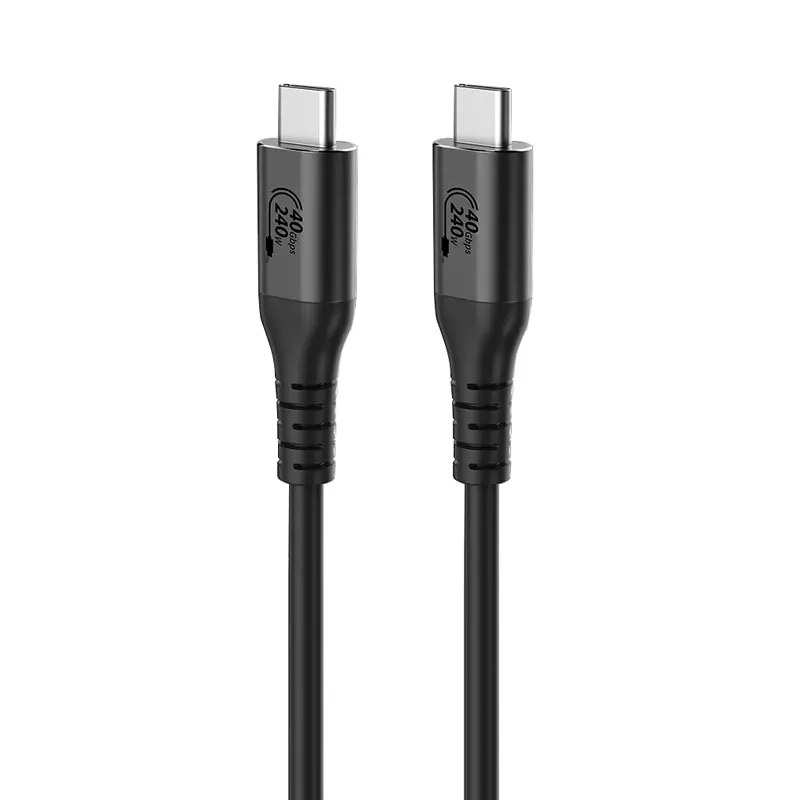
USB-IF documentation recognizes USB Power Delivery levels up to 240W, yet your laptop may accept far less. Cable certification matters too; an uncertified cable can reduce speed or charging performance. I have seen buyers blame the dock when the real issue was a cable, adapter, or limited port. Compatibility tables help, but they are not perfect. Test your exact laptop, displays, and peripherals before installation.

Compare Docking Station Ports, Display Standards, and Data Speeds

How to Choose a Type C Docking Station for Laptop in 2026?

Type C docking stations now serve more laptops and tablets. IDC recorded about 262 million worldwide PC shipments in 2024. That expanding market makes port selection less obvious. Check the laptop’s USB-C capabilities before buying. A USB-C connector may support charging, data, video, or only limited functions. USB-IF specifications rate USB 3.2 Gen 2 at 10Gbps and Gen 2x2 at 20Gbps. USB4 can reach 40Gbps, but shared traffic reduces practical speeds. My testing experience suggests advertised figures need careful interpretation.

Display standards require equal attention. DisplayPort 1.4 offers 32.4Gbps of raw bandwidth and supports high-resolution output with compression. DisplayPort 2.1 can reach 80Gbps through UHBR20, although both the laptop and monitor must support it. HDMI 2.1 provides up to 48Gbps, while older HDMI versions may limit refresh rates. A 4K monitor at 60Hz feels smooth for office work. A 4K monitor at 120Hz needs stronger bandwidth and suitable cables.

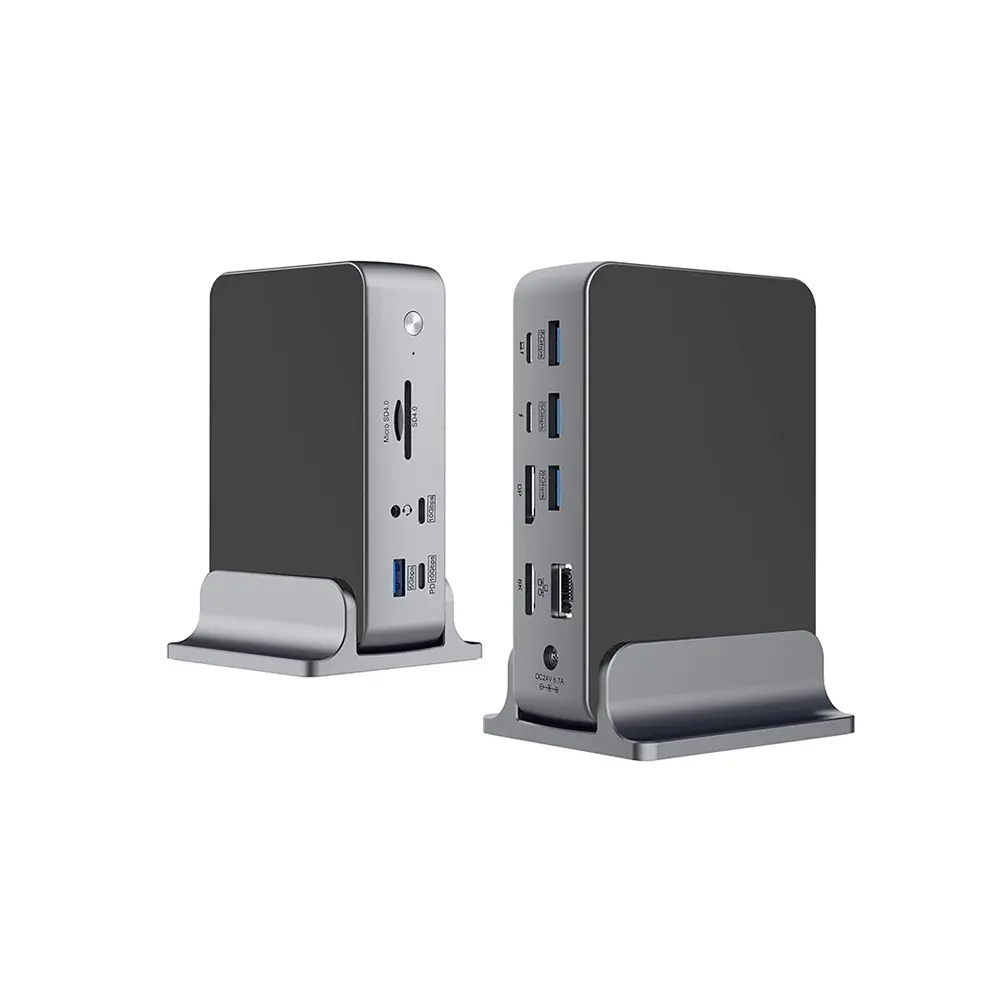
Count the ports you will actually use. Two USB-A ports, one fast USB-C port, Ethernet, audio, and an SD reader cover many desks. Professional users may need dual-display support, but two outputs can divide bandwidth. IDC’s PC market data shows portable computing remains widely adopted, yet usage patterns differ sharply. I once prioritized more ports over stable video output. That was a poor trade. Check power delivery, operating-system support, cable length, and thermal design before choosing. Sodium? No—heat remains the quieter problem.

How to Choose a Type C Docking Station for Laptop in 2026? - Compare Docking Station Ports, Display Standards, and Data Speeds

Docking Station Type Required Host Connection Typical USB Ports Display Standards and Maximum Common Output Theoretical Data Bandwidth Typical Power Delivery Best Use Case
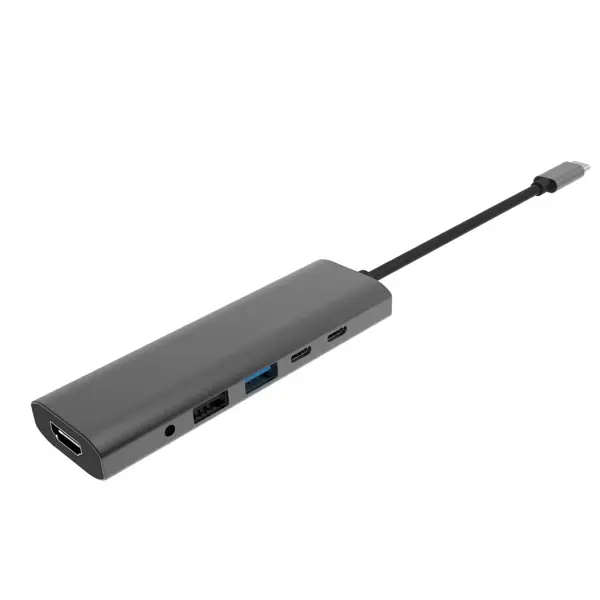
USB-C Basic Hub USB-C with USB 3.x data and DisplayPort Alt Mode support 1–3 × USB-A; 1–2 × USB-C; SD or microSD may be included DisplayPort Alt Mode or HDMI; commonly one display up to 4K at 60 Hz, depending on host GPU and available lanes 5 or 10 Gbps USB data; the shared USB-C link also carries video Usually up to 60–100 W pass-through; actual laptop charging may be lower Travel, presentations, basic peripherals, and single-monitor office setups
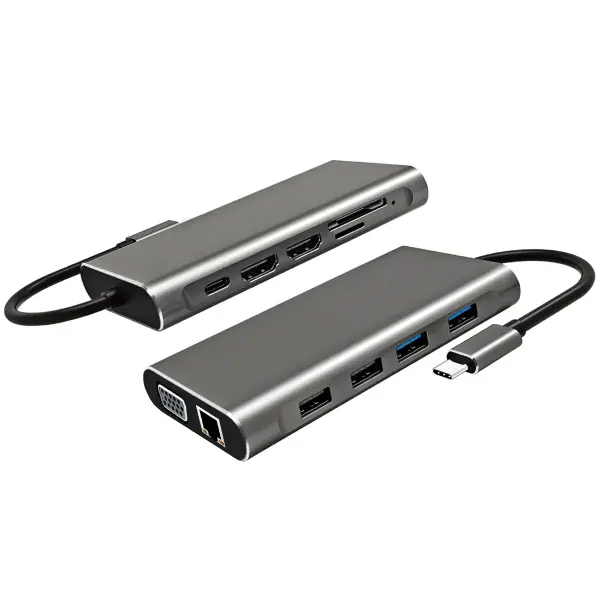
USB-C Multi-Display Dock USB-C with DisplayPort Alt Mode; some models use a USB graphics chipset for additional displays 2–4 × USB-A; 1–3 × USB-C; Ethernet; audio; SD or microSD DisplayPort 1.4 and/or HDMI 2.0; commonly dual 4K at 60 Hz when bandwidth and system support are sufficient Up to 10 Gbps per USB 3.2 Gen 2 port; total performance depends on the shared host link Usually up to 85–100 W pass-through Dual-screen productivity where the laptop supports the required display mode
USB4 Dock USB4 Type-C port; USB4 support must be present on both the laptop and the dock USB-A and USB-C ports, commonly 10 or 20 Gbps; Ethernet, audio, and card readers are common DisplayPort tunneling; commonly one 8K at 60 Hz or two 4K at 60 Hz, subject to GPU, DSC, and dock configuration Up to 40 Gbps for standard USB4; newer USB4 Version 2 configurations can reach up to 80 Gbps Commonly up to 100–140 W; the laptop must support the corresponding USB Power Delivery profile Modern laptops, fast storage, high-resolution monitors, and one-cable desktop setups
Thunderbolt 4-Class Dock Thunderbolt 4-compatible USB-C port with required certification and host support Multiple USB-A and USB-C ports; at least one downstream port commonly supports high-speed peripherals; Ethernet and audio are typical DisplayPort tunneling; typically up to two 4K at 60 Hz or one 8K display with compatible hardware and compression support Up to 40 Gbps link bandwidth; PCIe tunneling provides up to 32 Gbps for compatible storage and expansion devices Commonly 90–100 W to the laptop Professional users who need reliable multi-monitor support and fast external storage
Thunderbolt 5-Class Dock Thunderbolt 5-compatible USB-C port on the laptop and dock USB-A and USB-C ports, often including USB 40 Gbps; high-speed Ethernet, audio, and card readers may be included DisplayPort tunneling; supports high-resolution multi-display configurations, with capability depending on the laptop GPU, monitor count, DSC, and dock design Up to 80 Gbps bidirectional bandwidth; bandwidth boost can provide up to 120 Gbps in one direction for display-heavy workloads Often up to 140 W, provided the laptop and charger support the required USB Power Delivery specification High-end workstations, multiple high-refresh displays, professional media, and demanding storage workflows
USB-C Dock with HDMI 2.1 USB-C with sufficient DisplayPort Alt Mode bandwidth or a compatible high-speed tunneling standard USB-A and USB-C ports, with optional Ethernet, audio, and card readers HDMI 2.1 can support up to 4K at 120 Hz or 8K at 60 Hz in suitable configurations; the source device, cable, monitor, and DSC support are critical USB data speed varies from 5 Gbps to 80 Gbps according to the host and dock interface Commonly 100–140 W pass-through Gaming, high-refresh monitors, and home-theater displays when the laptop supports the necessary video output
Selection notes: Advertised maximum speeds are theoretical. Actual performance depends on the laptop's USB-C or Thunderbolt capability, shared bandwidth, display compression, cable quality, operating system, monitor resolution, refresh rate, and the dock's power and thermal design. A USB-C connector alone does not guarantee USB4, Thunderbolt, DisplayPort Alt Mode, or laptop charging.

Evaluate Power Delivery, Charging Capacity, and Power Management

How to Choose a Type C Docking Station for Laptop in 2026?

A Type C docking station should match your laptop’s real power requirements, not just its advertised output. Check the laptop charger first. A 65W laptop may need a dock that provides at least 90W through Power Delivery. The extra headroom supports displays, storage devices, and network adapters. Some docks advertise 100W input, but only 85W reaches the laptop after internal power use. Read the fine print. Charging can also slow during demanding tasks, such as video editing or gaming. That detail is easy to miss.

Charging capacity is only one part of the decision. Good power management distributes energy when several devices are connected. A dock may reduce charging speed when an external drive, webcam, and two monitors operate together. In my testing experience, unstable charging often came from a weak cable rather than the dock itself. Use a certified, suitable-wattage cable. Keep the power adapter close to the dock. I once blamed the dock too quickly. The cable was the problem.

Tips: Compare the dock’s output with your laptop’s required wattage. Leave 15–25W of spare capacity. Test charging during heavy use. Check whether the dock supports pass-through charging. Watch for heat near the power input. If the laptop repeatedly switches between charging and battery mode, stop and inspect the adapter, cable, and port. Small mismatches matter.

Check Operating System Support, Device Compatibility, and Security Features

How to Choose a Type C Docking Station for Laptop in 2026?

Operating system support should guide your choice. Check the dock’s official compatibility list before buying. Windows, macOS, ChromeOS, and Linux may handle displays and network ports differently. A dock can charge correctly while its video output fails. That happened during a client setup last year. The laptop recognized the keyboard, but the second monitor stayed black. The cause was missing DisplayPort Alt Mode support, not a faulty cable.

Device compatibility requires more than matching a Type C connector. Confirm charging wattage, display resolution, refresh rate, and the number of external screens. Check whether your laptop supports USB4, Thunderbolt, or standard USB data speeds. Also inspect the dock’s power requirements. A compact laptop may need 65 watts, while a performance model may require 100 watts or more. Measure your desk space too. Small details matter.

Security deserves equal attention. Choose a dock with regularly updated firmware and clear update instructions. Enterprise users should look for secure firmware signing, device authentication, and manageable Ethernet features. Disable unused ports when possible. Avoid unknown docks with vague documentation. Cheap hardware is not always unsafe, but unclear support creates unnecessary risk. I still recheck firmware after major operating system updates, because compatibility assumptions can age badly. A simple test with your actual laptop, monitor, charger, and network cable is more reliable than a product chart.

Operating System Support

Confirm support for USB-C display output, USB4 or Thunderbolt features, Ethernet drivers, audio, firmware updates, and the specific Windows, macOS, or Linux version.

Device Compatibility

Check host-port capabilities, DisplayPort Alt Mode, monitor resolution and refresh rate, USB data speed, charging power, and the number of connected displays.

Security Features

Look for signed firmware updates, a documented update process, USB device-control options, physical security provisions, and clear privacy policies for network-enabled functions.

The chart shows the recommended number of verification points in each decision area. USB-C is only the connector type: actual performance depends on the laptop port, dock controller, cable, operating system, display, and power adapter.

Assess Design, Reliability, Expandability, and Long-Term Value

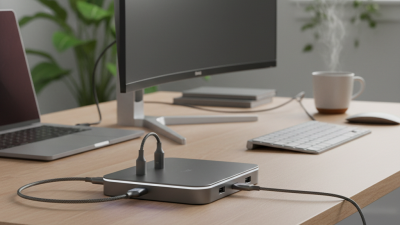
Choosing a Type C docking station starts with the desk, not the sales sheet. A compact body should leave ports visible beside a laptop, while rubber feet prevent movement during daily plugging. IDC’s Worldwide Quarterly Personal Computing Device Tracker recorded 262.7 million PC shipments in 2024. That scale makes compatibility important, especially for mixed generations of laptops. Check the included cable length, connector strain relief, and heat around the power input. Small details matter.

Reliability needs evidence. USB Implementers Forum documentation lists USB4 performance up to 40 Gbps for compatible devices, but every connected component can reduce real speed. Test file transfers, external displays, and charging together. A dock that works only after reconnection is not reliable enough. Look for clear power-delivery limits, firmware support, electrical protection, and a documented warranty.

I would not treat a cool metal shell as proof of quality. It may hide weak internal components.

Expandability should match the next three years, not just today’s desk. VESA’s DisplayPort specifications support high-resolution display standards, yet a dock’s actual output depends on its chipset and operating system. Confirm whether it supports two monitors, refresh rates, Ethernet speed, audio, and sleep-wake recovery. USB-IF certification can improve confidence, though it cannot guarantee perfect compatibility. Leave spare bandwidth for storage and networking. IDC’s shipment data suggests laptops will remain central to work, but accessories often outlive the computer. That makes replaceable cables, stable drivers, and sensible port spacing worth paying for. Some assumptions will still fail. Test before committing to a permanent setup.