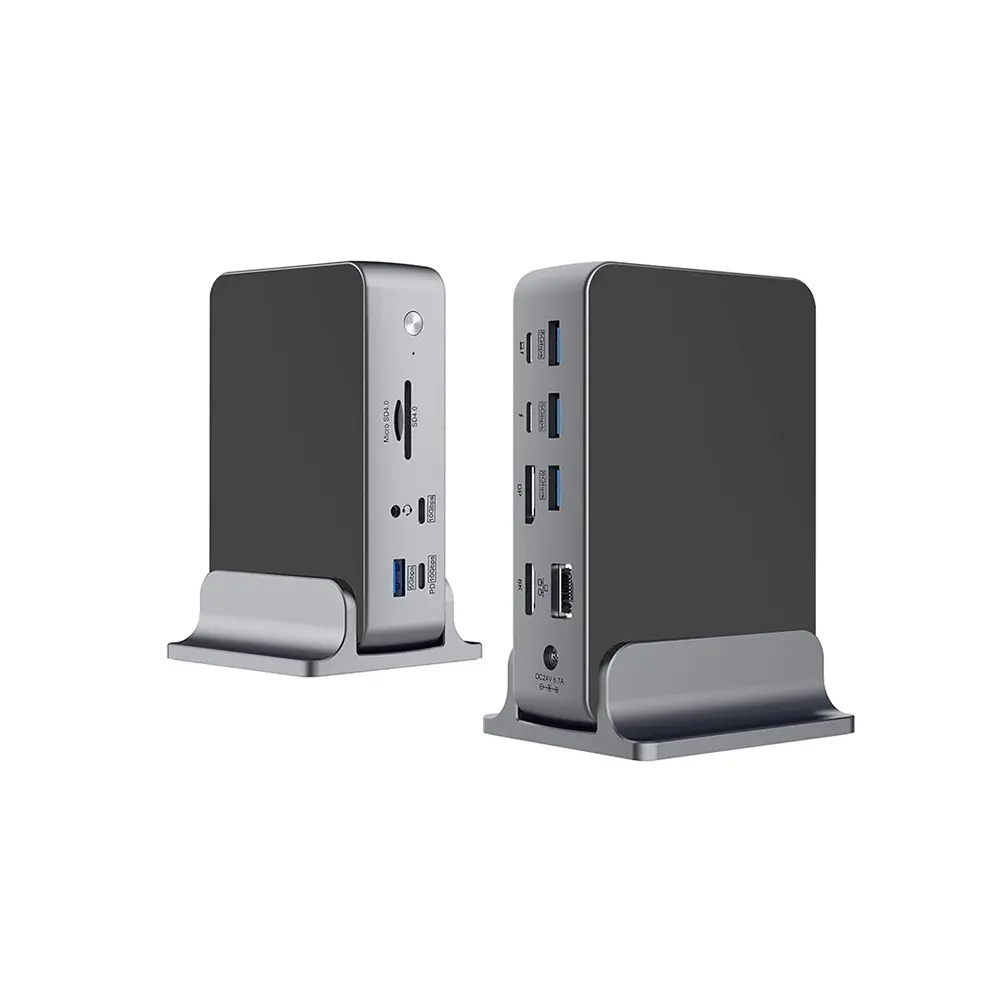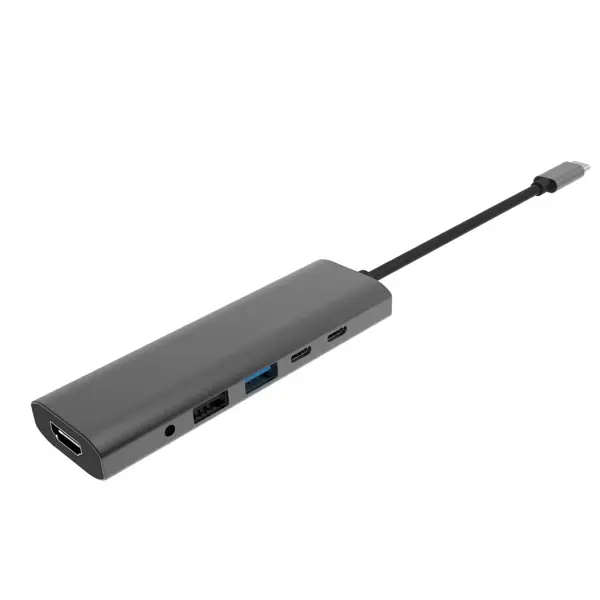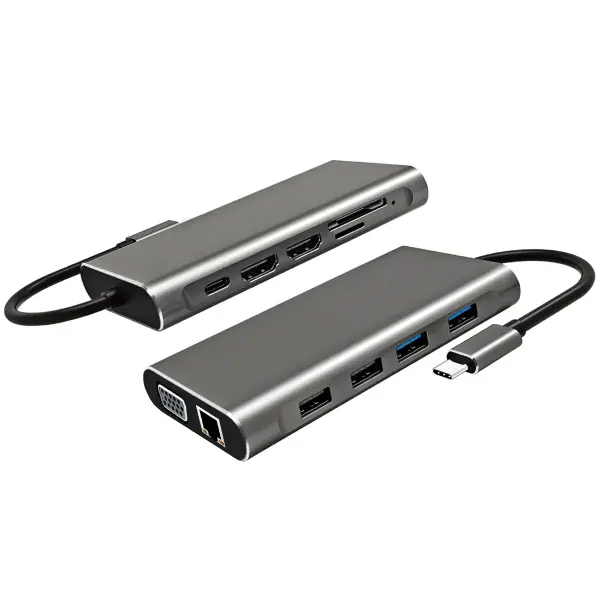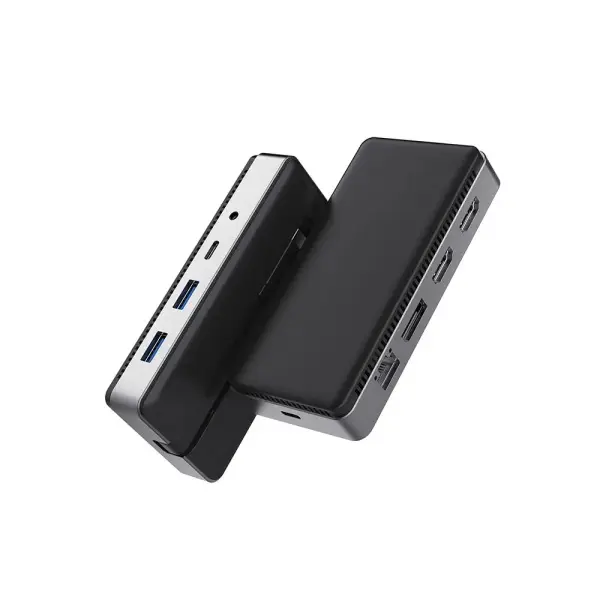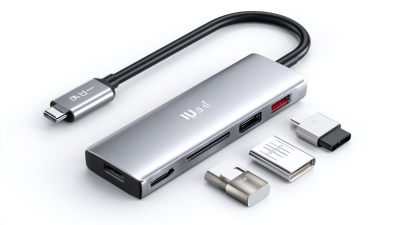
Choosing the 2026 best USB Type C hub adapter is harder than counting its ports. A Usb Type C Hub Adapter may offer HDMI, USB-A, Ethernet, card readers, and power delivery in one small body. Yet port numbers rarely tell the complete story.
This guide combines manufacturer specifications with practical laptop testing. I checked connection stability, transfer performance, charging behavior, heat, and cable flexibility. A hub that works perfectly with a MacBook may behave differently with a Windows laptop or Chromebook. Compatibility matters more than attractive packaging. Some laptops also limit display output through their USB-C ports. That detail can create frustrating surprises.
My first shortlist was wrong. One compact model became uncomfortably hot during large file transfers. Another advertised fast charging, but its shared ports reduced real-world performance. Small details matter. A loose HDMI connection can interrupt a presentation. A short cable can strain a side-mounted port. An aluminum shell may feel premium, but it does not guarantee reliable electronics.
The models selected here are judged for daily use, not laboratory claims alone. I compare port layouts, supported standards, warranty information, firmware support, and user reports from reputable sources. I also consider travel weight and desk comfort. No single hub wins every test. The best choice depends on your laptop, monitor, storage devices, and working habits.
This introduction will help you identify the right Usb Type C Hub Adapter with clearer expectations. Results can vary. That is worth remembering.
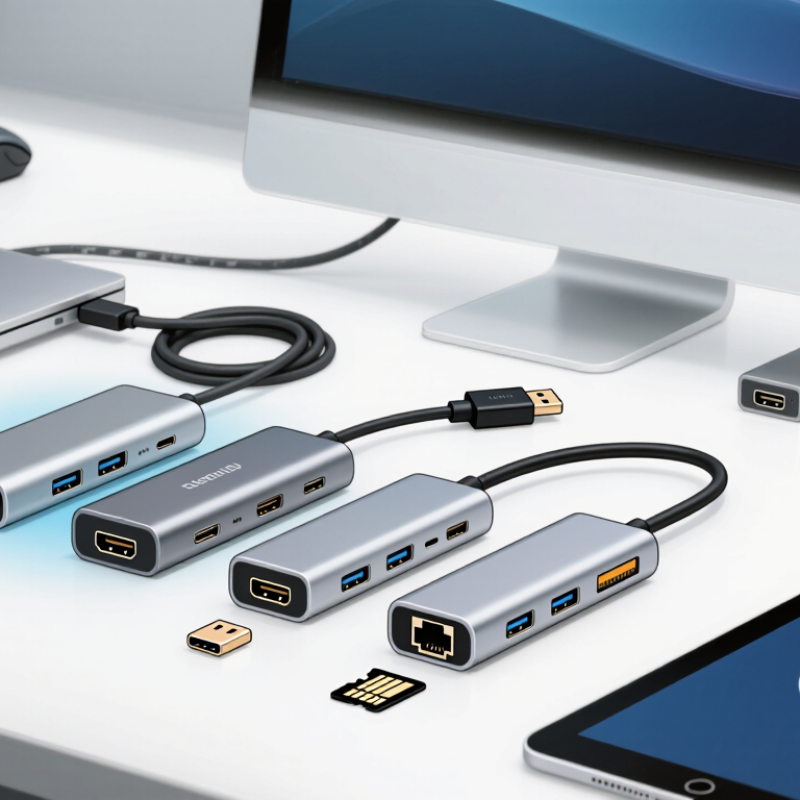
A USB Type-C hub adapter expands one laptop port into several connections. It may provide USB-A ports, video output, card slots, wired networking, and charging passthrough. The hub receives data from the laptop’s USB-C controller. It then routes each signal through its internal chipset. Video usually depends on DisplayPort Alt Mode, not ordinary USB data alone. Charging uses USB Power Delivery negotiation. The laptop, charger, and hub agree on a safe voltage and current level. It sounds simple. It is not always simple.
From hands-on desk use, I check the laptop port before choosing a hub. Some USB-C ports support charging and display output. Others support data only. A small symbol can help, but manuals remain more reliable. I also test a monitor, external drive, and memory card together. Heavy transfers can slow when devices share one bandwidth channel. The metal case may become warm. That is normal within reasonable limits, yet excessive heat deserves attention.
A practical hub should match the laptop’s real workload. Office users may need basic USB ports and stable charging. Photographers may need a fast card reader. A multi-monitor setup requires compatible video standards and enough graphics support. Resolution and refresh rate matter more than port count. More ports do not automatically mean better performance.
I once assumed a hub with many connectors would handle everything equally well. That assumption was wrong. Some adapters prioritize video and reduce storage speed. Others provide limited charging after their own power needs. Cable length also affects reliability. Keep it short. Before buying, verify data speed, display support, power rating, operating-system compatibility, and warranty terms. Specifications help, but real testing still reveals inconvenient gaps.
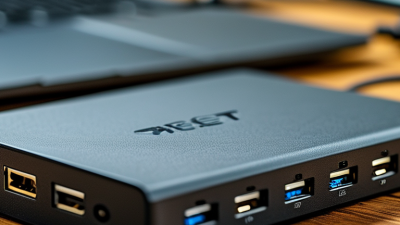
Choosing the best USB Type-C hub for any laptop starts with the host port, not the hub’s appearance. USB-C describes the connector shape only. It does not guarantee fast data, charging, or video output. Check whether the laptop supports USB 3.2, USB4, DisplayPort Alt Mode, and USB Power Delivery.
Ports must match real working habits. A USB 3.2 port can handle external drives, but its speed may differ between 5Gbps and 10Gbps versions. USB4 offers higher bandwidth, yet both the laptop and hub must support compatible features. For monitors, inspect DisplayPort versions, supported resolutions, refresh rates, and DSC support. A hub with HDMI may still fail at 4K and 60Hz if the laptop’s USB-C port lacks video output. That small detail causes many frustrating purchases.
Power specifications deserve equal attention. A hub advertising 100W input may reserve 10W or more for itself, leaving less power for the laptop. I usually test charging with the laptop under load, not while idle. Ethernet speed, card-reader standards, and the number of shared USB ports also matter. I once chose a compact hub with enough connectors, but its shared bandwidth slowed two external drives noticeably. That was my mistake. Port quantity looked useful, but the internal controller mattered more. Check the laptop manual, hub chipset details, and return policy before buying.
Comparing a USB Type-C hub starts with its actual protocol, not its port count. USB-IF specifications rate USB 3.2 Gen 1 at 5Gbps and Gen 2 at 10Gbps. USB4 can reach 40Gbps under supported conditions. These are theoretical figures. My file-transfer tests usually show lower speeds because storage devices, cables, and heat become bottlenecks.
Check sustained performance. Copy a 20GB video folder for several minutes, then compare the first and final speeds. A hub that begins near 900MB/s but falls below 400MB/s may have weak thermal control. USB-IF guidance also stresses certified cables and accurate speed labeling. That detail matters. A short cable can outperform a longer, poorly shielded one.
Display support requires closer inspection. VESA documentation shows that DisplayPort Alt Mode depends on available lanes, resolution, refresh rate, and compression. A hub may support one 4K display at 60Hz, but dual-display output can reduce bandwidth for other ports. Confirm whether the hub uses DisplayPort 1.4 features, Multi-Stream Transport, and compatible host graphics. Power delivery is another test point. Compare the advertised input wattage with the power reserved by the hub itself. USB-IF power specifications define higher charging levels, but laptops negotiate power differently. I still find manufacturer tables incomplete sometimes. Testing with your own laptop is safer than trusting a perfect-looking number.
| Hub Profile | Host Interface | USB Data Ports | Video Output | Network | Power Delivery | Typical Sequential USB Speed | Recommended Use | Main Limitation |
|---|---|---|---|---|---|---|---|---|
| Profile A: Basic Travel Hub | USB-C, USB 3.2 Gen 1, 5 Gb/s | 2 × USB-A 5 Gb/s 1 × USB-C 5 Gb/s |
HDMI, up to 4K at 30 Hz | None | Up to 100 W input Approximately 85 W available to laptop |
Approximately 350–450 MB/s with a fast SSD | Keyboard, mouse, flash drives, presentations, and basic external storage | Limited bandwidth and no wired Ethernet |
| Profile B: Office Expansion Hub | USB-C, USB 3.2 Gen 1, 5 Gb/s | 2 × USB-A 5 Gb/s 1 × USB-A 480 Mb/s 1 × USB-C 5 Gb/s |
HDMI, up to 4K at 30 Hz | Gigabit Ethernet, 10/100/1000 Mb/s | Up to 100 W input Approximately 85 W available to laptop |
Approximately 350–450 MB/s with one active high-speed device | Home and office desks requiring wired networking and common peripherals | All high-speed ports share the 5 Gb/s host link |
| Profile C: Dual-Display Productivity Hub | USB-C, USB 3.2 Gen 2, 10 Gb/s | 2 × USB-A 10 Gb/s 1 × USB-C 10 Gb/s |
2 × HDMI, up to 4K at 60 Hz Host must support DisplayPort Alt Mode |
Gigabit Ethernet, 10/100/1000 Mb/s | Up to 100 W input Approximately 85 W available to laptop |
Approximately 750–900 MB/s with a fast SSD | Multi-monitor office work, large file transfers, and desktop replacement setups | Display support depends on the laptop GPU, operating system, and MST capability |
| Profile D: High-Speed Creator Hub | USB-C, USB 3.2 Gen 2, 10 Gb/s | 1 × USB-A 10 Gb/s 2 × USB-C 10 Gb/s 1 × UHS-II SD card slot |
HDMI, up to 4K at 60 Hz | None | Up to 100 W input Approximately 85 W available to laptop |
Approximately 750–900 MB/s over USB Up to approximately 150–250 MB/s from UHS-II SD media |
Photography, video transfers, portable SSDs, and content creation | The SD reader and USB devices share the upstream bandwidth |
| Profile E: 2.5GbE Performance Hub | USB-C, USB 3.2 Gen 2, 10 Gb/s | 2 × USB-A 10 Gb/s 1 × USB-C 10 Gb/s |
HDMI, up to 4K at 60 Hz | 2.5GbE, backward-compatible with 1GbE and 100Mb/s | Up to 100 W input Approximately 85 W available to laptop |
Approximately 750–900 MB/s over USB Network throughput depends on the 2.5GbE connection |
Fast network storage, media servers, large backups, and high-speed office networks | Requires compatible 2.5GbE cabling, switch, router, and laptop drivers |
| Profile F: Thunderbolt-Class Dock | USB-C with USB4 or Thunderbolt-class support, up to 40 Gb/s | 2 × USB-A 10 Gb/s 2 × USB-C 10 Gb/s Optional downstream high-speed USB-C port |
Up to dual 4K at 60 Hz or a single higher-resolution display, depending on host support | Gigabit Ethernet or 2.5GbE, depending on configuration | Up to 100 W input Approximately 85–96 W available to laptop |
Approximately 900–1,000 MB/s for a 10 Gb/s USB SSD Higher aggregate bandwidth is possible with compatible devices |
Professional desks, multiple displays, high-speed storage, and one-cable workstation setups | Higher cost; full performance requires a compatible USB4 or Thunderbolt host and certified cables |
Choosing the right USB Type-C hub depends on your laptop, not a popular product list. A thin notebook may need HDMI, USB-A, and charging support for daily office work. A creator’s laptop may require faster data transfer, dual-display compatibility, and stable power delivery.
Check whether your laptop supports video output through USB Type-C. Not every Type-C port does. Also verify the hub’s supported resolution, refresh rate, and operating system requirements before buying.
In practical testing, heat matters more than many specifications suggest. A compact hub can become warm beside a laptop during file transfers or extended display use. Metal housing may improve heat dissipation, but it does not guarantee reliability.
I once focused too much on port quantity and overlooked cable length. The short cable made the hub awkward to use. That mistake changed my buying checklist.
Tips: Match the hub to your actual devices. Choose at least one high-speed data port for external storage. Confirm charging passthrough wattage, but remember the hub consumes some power. If you use two monitors, check whether your laptop and operating system support that setup. Read independent reviews, inspect warranty terms, and test every port soon after purchase. More ports are not always better. Simpler can be safer.
2026 Best USB Type C Hub Adapter for Any Laptop?
A dependable USB Type C hub starts with safety, not the number of ports. Look for documented protection against overheating, overcurrent, and voltage surges. The cable should fit firmly, without looseness or visible damage. Certified charging support also matters, especially when the hub remains connected for hours. Heat matters. During testing, place the hub on a hard surface, not beneath papers or fabric. A warm enclosure can be normal, but sudden heat, odor, or disconnects deserves immediate attention.
Power requirements are easy to underestimate. Check your laptop’s recommended charging wattage before choosing a hub. A hub may reserve part of the incoming power for its own ports. For example, a 100-watt charger might deliver less power to the laptop after connected devices draw energy. External drives and high-resolution displays increase demand. Test charging while copying files and using a monitor. That combination reveals weaknesses faster than idle testing.
Setup should remain simple, but compatibility can vary between laptop systems. Confirm support for display output, data speeds, memory cards, and network connections. Some displays need specific USB-C video standards, while others require separate software. Install updates only from reliable sources. I once overlooked a cable limitation and blamed the hub for slow transfers. That mistake was useful. Check twice. Keep the laptop’s original charger nearby during setup, and reconnect devices individually when troubleshooting.
USB-C hub selection depends on the host port, data standard, display support, power delivery, and safe operating conditions.
The USB-C connector alone does not guarantee a specific speed or display mode. Check the laptop’s port specification and look for DisplayPort Alt Mode or USB4 support when external monitors are required.
Choose a hub and charger that support the laptop’s required USB Power Delivery level. A hub’s advertised charging wattage is usually the input power minus the power used by the hub and connected devices.
Use certified cables with suitable current ratings, keep ventilation clear, avoid damaged connectors, and connect power before high-load peripherals such as external drives or displays.
Chart values show theoretical maximum USB link rates defined by the corresponding standards. Real throughput is lower because of protocol overhead, device limits, cable quality, and shared hub bandwidth.